

The short answer: on Windows, the right USB-C hub gives you three screens without a hitch: two external monitors plus your laptop screen. On a MacBook with Apple Silicon, it works differently. It drives only one external screen via USB-C, unless you use a hub with DisplayLink technology. Below you'll find exactly what fits your device, so there are no surprises.
First things first: the connection determines whether it works
A hub doesn't create any extra image on its own. It extends what your laptop can already do through the USB-C port. Whether three screens works therefore depends on two things: your operating system and the technology behind your USB-C port.
Most video hubs work with DisplayPort Alt Mode (often shortened to DP Alt Mode). That means your USB-C port can pass through a real video signal. If your laptop has Thunderbolt 3 or 4, that's always built in. With a regular USB-C port, check your laptop's specifications. No Thunderbolt or DP Alt Mode? Then the hub won't pass through any video, no matter how many HDMI ports it has.
Windows: three screens work smoothly
On Windows 10 or 11, a three-screen setup is easy to achieve and stable. All you need is a USB-C port with DP Alt Mode or Thunderbolt, plus a graphics card that supports multiple screens. Virtually every modern laptop handles that just fine.
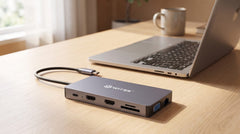
The Switss® 12-in-1 USB-C hub has two HDMI outputs and a VGA output. Connect two monitors via HDMI and use your laptop screen as the third, and you have a full three-screen workstation. On many Windows systems, you can even add a fourth screen via VGA.
What else you get: gigabit ethernet for a stable connection, 100W Power Delivery so your laptop charges fully while you work, an SD and microSD card reader, extra USB ports and audio. One cable to your laptop, and your entire desk is connected.
What you need for three screens on Windows:
- A USB-C port with DisplayPort Alt Mode or Thunderbolt
- Windows 10 or 11
- A graphics card that supports multiple screens (standard on modern laptops)
MacBook: here it's honestly different
On a MacBook with an M1, M2, or M3 chip, there's a limit you can't change. Apple has built these chips so they drive only one external screen through a single USB-C/Thunderbolt port. That's not a setting you can switch, it's built into the hardware itself.
- MacBook Air (M1/M2/M3): one external screen maximum via USB-C. If you use a hub with two HDMI ports, the second stays black.
- MacBook Pro (M1 Pro/M1 Max and higher): can drive multiple external screens, through its own HDMI port and the Thunderbolt ports on the device itself.
- Intel MacBooks: support multiple screens via Thunderbolt 3, but these models are outdated by now.
A hub like the 12-in-1 works fine on a MacBook Air for one screen, but the second HDMI output does nothing there, unless you turn to the solution below.
DisplayLink: the workaround for multiple screens on a Mac
If you still want two or three external screens on a MacBook Air, there's one route: DisplayLink. With this technology, a separate chip in the hub builds the image and sends it over USB, independent of the graphics chip. This is how you get around Apple's limit.
There's a trade-off, though:
- You install the free DisplayLink software once
- Your Mac works a bit harder, since it processes the image via software
- With fast video or animations, there can be a slight delay
- Not every app plays perfectly with a DisplayLink screen
Good to know: the Switss hubs work with DP Alt Mode, not DisplayLink. If you have a MacBook Air with Apple Silicon and specifically want multiple external screens, you'll need a separate DisplayLink hub for that.
What do the Switss hubs do well on a MacBook?
Despite the screen limit, the hubs are very useful on a Mac:
- one external screen in 4K at 60Hz via HDMI, crisp and smooth
- Gigabit ethernet for a fixed, stable internet connection
- 100W Power Delivery, so your MacBook charges through the hub
- SD card reader, USB-A ports, and audio within reach
- On a MacBook Pro (M1 Pro and higher), multiple screens also simply work with the 12-in-1
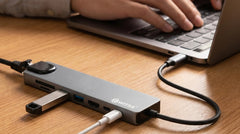
The Switss 8-in-1 USB-C hub is a great everyday choice for MacBook users who want one external screen, ethernet, and extra ports, in a compact size without hassle.
Overview by platform
| What do you want? | Windows (DP Alt Mode) | MacBook Air M1/M2/M3 | MacBook Pro M1 Pro+ |
|---|---|---|---|
| 1 external screen via the hub | Yes | Yes | Yes |
| 2 external screens via the hub | Yes | No (DisplayLink only) | Yes (via its own ports) |
| 3 screens total (including laptop screen) | Yes | Limited | Yes |
| Gigabit ethernet via the hub | Yes | Yes | Yes |
| 100W Power Delivery via the hub | Yes | Yes | Yes |
Which hub fits you?
Windows, no compromises: the Switss 12-in-1 USB-C hub gives you two HDMI plus VGA, gigabit ethernet, 100W PD, and all the ports for a complete workstation.
MacBook or Windows, one external screen: the Switss 8-in-1 USB-C hub offers 4K HDMI, gigabit ethernet, Power Delivery, and card readers in a compact form.
Conclusion
On Windows, you set up a reliable three-screen workstation with ease, and the Switss 12-in-1 USB-C hub gives you everything for it. On a MacBook Air with Apple Silicon, you can only drive one external screen via USB-C, so check that beforehand. If you use a MacBook Pro or want the maximum on Windows, the 12-in-1 gives you the most flexibility. If one screen is enough and you want to keep it compact, the Switss 8-in-1 hub is the smartest choice. Still not sure? Our Dutch customer service is happy to think it through with you, and you buy with a 2-year warranty and 30-day returns.
Frequently asked questions
Can I connect two external screens to a MacBook Air M2 via a USB-C hub?
Not without DisplayLink. A MacBook Air with Apple Silicon drives only one external screen via USB-C; that's a limit in the chip. With a DisplayLink hub and its accompanying software, it does work.
Does the Switss 12-in-1 hub work with two HDMI screens on Windows?
Yes. If your USB-C port has DP Alt Mode or Thunderbolt, you can use both HDMI outputs at the same time for a two- or three-screen setup.
What's the difference between Thunderbolt and regular USB-C for screens?
Thunderbolt 3 and 4 always support DP Alt Mode and offer more bandwidth. Regular USB-C can support it, but doesn't have to. With Thunderbolt, you're covered; with USB-C, check your laptop's specs.
Does a screen connected via a USB-C hub have lag?
On DP Alt Mode hubs, the lag is negligible, fine for office work, video, and light creative tasks. For competitive gaming or high frame rates, a direct HDMI or DisplayPort connection is better.
Which Switss hub should I choose for three screens?
On Windows, the 12-in-1 USB-C hub: two HDMI plus VGA, gigabit ethernet, and 100W charging. If one external screen is enough, the compact 8-in-1 is the smartest choice.