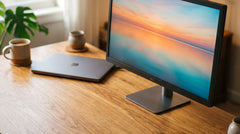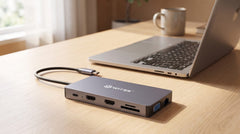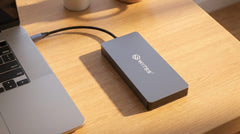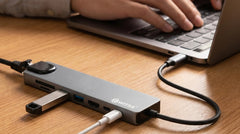


The short answer: with one USB-C cable, you connect your laptop in three seconds to everything on your desk: screen, internet, keyboard, mouse and power, all at once. A USB-C hub stays on your desk and bundles all those cables. Plug in once in the morning, unplug once at the end of the day. That is all there is to it.
The problem: a tangle of cables
Sound familiar? Every morning you plug four or five cables into your laptop: the charger, the screen, the mouse, sometimes a network cable. And as soon as you want to head to a meeting or the coffee shop, you pull that whole tangle out again. When you get home, the puzzle starts all over again.
That is not necessary. With a docking setup, you simply leave all those cables permanently attached to your desk. You connect your laptop with exactly one cable. That makes your workspace not only tidier, but also a lot quicker to use.
How a one-cable workspace works
A USB-C hub is a small box you place between your laptop and all your devices. The hub stays put, with your screen, network, keyboard, mouse and charger permanently plugged into it. From the hub, a single USB-C cable then runs to your laptop. That one cable carries everything at the same time: video, data, internet and power.
The Switss® 12-in-1 USB-C hub was made exactly for this purpose. It offers two HDMI outputs plus VGA (up to three screens), gigabit ethernet for a stable internet connection, 100W Power Delivery so your laptop charges at the same time, an SD and microSD card reader, USB-A ports for your peripherals and a 3.5 mm audio connection. All through that one cable.
Does your laptop work for this?
Almost certainly yes, but it is worth checking this quickly. Your laptop needs a USB-C port that can do two things: pass through video (this is called DisplayPort Alt Mode) and receive power via Power Delivery. In practice, that applies to:
- All MacBook Air and MacBook Pro models from 2016 onward
- Most Windows laptops with Thunderbolt 3, Thunderbolt 4 or USB-C with DisplayPort Alt Mode
- Many Chromebooks
Not sure? Search your laptop's specifications for “Thunderbolt”, “USB4” or “USB-C with DisplayPort Alt Mode”. If one of those terms is listed, the setup will work. If you cannot figure it out, our Dutch customer service is happy to help you beforehand, so you can be sure it fits.
Set up in four steps
Setting it up is a one-time job and takes only a moment.
- Give the hub a fixed spot. Place it next to your screen or behind your laptop, somewhere it can stay put.
- Connect everything that stays on your desk: your monitor's HDMI cable, the network cable, your keyboard and mouse (or their USB receiver) and your headset. You never have to unplug those cables again.
- Plug your laptop charger into the hub's PD port, no longer directly into your laptop. The Switss hubs have no power adapter of their own: they pass the power from your charger neatly through to your laptop via that one cable.
- Connect the hub to your laptop with the included USB-C cable. Everything works immediately: video, internet, peripherals and charging.
Does your second screen not display correctly right away? Set up the screen layout via System Settings → Displays (macOS) or Settings → System → Display (Windows). On the 12-in-1, you configure each screen individually.
Which hub suits you?
Which model you choose depends on how many screens you want and how much charging power your laptop requires.
| Your workspace | Recommended | Key features |
|---|---|---|
| One screen, compact and affordable | Switss 8-in-1 USB-C hub | 1× 4K screen via HDMI, gigabit ethernet, 65W Power Delivery, SD card reader and USB-A. Ideal for MacBook Air, light Windows laptops and Chromebooks. |
| Two or three screens, fully equipped | Switss 12-in-1 USB-C hub | 2× HDMI + VGA, gigabit ethernet, 100W Power Delivery, SD/microSD and audio. For MacBook Pro and heavier Windows laptops. |
| One screen plus fast local storage | Switss 5-in-1 docking station with M.2 | HDMI, 100W PD and a built-in M.2 SSD slot. Hub and fast storage in one device, handy for content creators. |
Tip: choose wired internet for your calls
Do you work with video calls a lot? Then connect the ethernet cable to your hub instead of relying on wifi. A wired connection is more stable and prevents choppy video or audio during important conversations. Your laptop switches over automatically as soon as the cable is connected through the hub.
Conclusion
A home office with one USB-C cable is not a gadget, but the most practical way to connect and disconnect in an instant. The key is a hub with exactly the ports you need. If one screen is enough for you, the Switss 8-in-1 USB-C hub offers everything you are looking for. If you want two or three screens and maximum charging power, the Switss 12-in-1 USB-C hub is the logical choice. One cable, no hassle, and with a 2-year warranty and 30-day returns you buy worry free.
Frequently asked questions
How many screens can I connect to a USB-C hub?
That depends on the hub. The Switss 8-in-1 supports one 4K screen via HDMI. The Switss 12-in-1 offers two HDMI outputs plus VGA, so up to three screens at once. Your laptop does need to support multiple screens: modern MacBooks and Windows laptops with Thunderbolt usually do.
Does a Switss hub need its own power adapter?
No. The hub receives power via the USB-C cable to your laptop. Connect your laptop charger to the hub's PD port; it passes the power through to your laptop. For the 12-in-1, do make sure you use a charger of at least 100W to reach the full charging speed.
My laptop charges slower through the hub. How do I fix that?
First check that your laptop charger is plugged into the hub's PD port and not directly into your laptop. Then check whether your charger is powerful enough: the 12-in-1 delivers up to 100W, but only if your own charger can also handle at least 100W.
Does this also work on a Windows laptop?
Yes, provided your USB-C port supports DisplayPort Alt Mode or Thunderbolt. Most Windows laptops from after 2018 can do this. Not sure? Our Dutch customer service is happy to check it with you before you order.
Can I use the hub without an external screen?
Certainly. You can use the hub perfectly well just for internet, USB ports and charging your laptop. The HDMI port simply stays unused then, and that is not a problem.