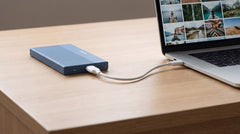



The short answer: that old laptop drive still makes perfectly good storage. Click it into a 2.5-inch enclosure, connect via USB-C and you have an external drive within five minutes. No tools, no drivers and no separate power supply needed.
Below you'll find how to do that step by step, which enclosure fits your drive, and whether it matters if you have an HDD or an SSD.
Why throwing it away is a waste
Replaced an old laptop? It almost certainly contains a 2.5-inch drive. Laptops from before 2016 usually have a regular hard drive (HDD), while newer models sometimes have a faster SATA SSD. Both work perfectly fine as an external drive.
A drive from 500 GB to 2 TB that you already have lying around is simply the cheapest external storage there is. The only thing missing is a housing around it.
Which enclosure fits your drive?
The size of your drive determines which enclosure you need. There are two cases.
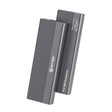
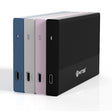
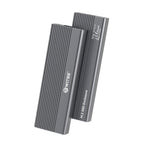
A 2.5-inch laptop drive (HDD or SATA SSD) goes into the Switss® 2.5-inch enclosure. It works with drives up to 4 TB, reaches roughly 450 MB/s over USB 3.0 with UASP, and gets power directly from the USB cable. One cable, done.
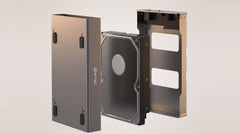
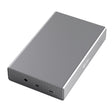
A 3.5-inch desktop drive is larger and needs more power than a USB port can supply. For that, grab the Switss 3.5"/2.5" enclosure: it takes both formats, goes up to 20 TB and comes with a power adapter included.
Not sure which one you have? A laptop drive is roughly the size of a deck of cards; a desktop drive is noticeably heavier and wider. Prefer to be sure beforehand? Take the quiz and you'll see the right enclosure right away.
Step 1: removing the drive from your old laptop
Most laptops have a panel or hatch on the underside for storage. Opening it differs per model, but the idea is the same everywhere:
- Turn off the laptop and unplug it. Can you unclip the battery? Do that too.
- Undo the screws of the bottom panel or the hatch.
- The drive is held in place by a bracket or a couple of screws.
- Carefully pull off the flat SATA connector and slide the drive out.
Not sure how your model opens up? Search YouTube for "[brand and model] replace SSD". For almost every laptop there's a calm walkthrough video of a few minutes.
Step 2: placing the drive in the enclosure
This is the easy part. It works without any tools.
- Open the enclosure via the slider or the single screw.
- Slide the drive into the connector. It only fits one way, so forcing is never necessary.
- Click the enclosure shut.
- Connect with the included USB-C cable.
Windows, macOS and Linux recognize the drive automatically. You don't need to install anything.
Do you need to wipe the drive first?
No, not necessarily. Is there still data from your old laptop on it? Then just open File Explorer (Windows) or Finder (Mac) and copy your files over. It's normal for a few old system files to appear locked, and you don't need those anyway.
Want a fresh, empty drive? Then format it:
- Windows: Disk Management → right-click the volume → Delete Volume → New Simple Volume → choose NTFS or exFAT.
- macOS: Disk Utility → select the disk → Erase → choose exFAT or APFS.
Want to use the drive on both Windows and Mac? Then choose exFAT.
HDD or SSD: does it matter?
For backups and archiving you'll barely notice the difference. If you regularly move large files quickly, an SSD is noticeably snappier.
| Drive type | Read speed | Ideal for |
|---|---|---|
| 2.5" HDD (5400 RPM) | 80–120 MB/s | Backup, archive, media |
| 2.5" HDD (7200 RPM) | 100–160 MB/s | Larger files, heavier backups |
| 2.5" SATA SSD | 400–500 MB/s | Fast transfers, daily use |
Good to know: for an external drive, the USB connection sets the upper limit. The Switss 2.5-inch enclosure reaches roughly 450 MB/s over USB 3.0 with UASP. That's plenty to fully use a SATA SSD, and an HDD never gets close to that limit anyway.
What can you use it for?
- Making backups: perfect for Time Machine (Mac) or Windows Backup. For most people, 500 GB or 1 TB is more than enough.
- Storing photos and videos: a quiet archive for memories you don't need every day.
- Extra storage: use the drive as secondary storage for your current laptop or another computer.
- Moving files: copy large folders between computers, without the cloud or slow downloads.
Drive not recognized? Check this first
- Is the SATA connector seated firmly? Unplug it and push it back in properly.
- Try a different USB port or a different cable.
- Open Disk Management (Windows) or Disk Utility (Mac). Sometimes the drive shows up but without a letter or volume because it still needs to be initialized.
- Did the drive already make clicking sounds in your old laptop, or was it already not recognized back then? Then it was likely physically faulty, and unfortunately an enclosure won't fix that.
Conclusion
Throwing away an old 2.5-inch laptop drive wastes both your money and usable storage. With the Switss 2.5-inch enclosure, you turn it into a reliable external drive in about fifteen minutes: no tools, no drivers, just connect and use.
Also have a 3.5-inch desktop drive lying around? Then the Switss 3.5"/2.5" enclosure is your choice: it works with both formats and drives up to 20 TB. And with Dutch customer service, a 3-year warranty and a 30-day return period, you buy without risk.
Frequently asked questions
Does every 2.5-inch laptop drive work in the enclosure?
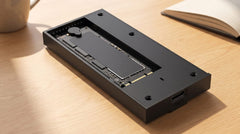
Yes, as long as it's a standard 2.5-inch SATA drive (HDD or SSD). M.2 drives have a different connector and don't fit in a 2.5-inch enclosure.
Do I need a separate power supply?
Not for a 2.5-inch drive: it gets power via the USB cable. A 3.5-inch desktop drive needs more power; the Switss 3.5"/2.5" enclosure therefore comes with a power adapter included.
How many TB does the enclosure support?
The Switss 2.5-inch enclosure works with drives up to 4 TB. If you have a larger drive or a 3.5-inch drive, the Switss 3.5"/2.5" enclosure goes up to 20 TB.
Can I just find my old files again?
Yes. Connect the drive and open File Explorer or Finder; your old data is still there. Only format it if you want an empty drive.
How fast is an old HDD in an enclosure?
A 2.5-inch HDD reaches around 80–160 MB/s, fine for backups and media. A SATA SSD, at 400–500 MB/s, is noticeably faster for daily use.