

The short answer: on the PS5 and Xbox Series X/S, you can only play new games from internal storage. An external USB drive works fine for media and older games (PS4 or Xbox One), but you can't launch PS5 or Series titles from it. If you really want more room for your newest games, you need an internal upgrade: an M.2 NVMe SSD in the PS5 or a Seagate Expansion Card in the Xbox.
Below you'll find, per console, what is and isn't possible, which SSD you need, and when an external enclosure still comes in handy.
At a glance: what works on which console?
| Console | Internal upgrade | External USB for new games | External USB for media and older games |
|---|---|---|---|
| PlayStation 5 | Yes, M.2 NVMe (PCIe Gen 4) | No | Yes (media + PS4 games) |
| Xbox Series X/S | Yes, Seagate Expansion Card | No | Yes (media + Xbox One games) |
| PlayStation 4 / Pro | No (internal 2.5″ SATA) | Yes, all games | Yes |
| Xbox One / One X | No (fixed internal) | Yes, all games | Yes |
The rule of thumb is simple: the newer the console, the stricter the speed requirements. PS5 and Series games expect read speeds of around 5500 MB/s. A USB connection doesn't reach that, and that's exactly where the limitation lies.
PS5: an internal upgrade is the real solution
There's an M.2 slot under the side panel of your PS5. You fit an NVMe SSD yourself and immediately get extra room for your PS5 games, with no need to move anything around. Sony does set a few requirements:
- Interface: PCIe Gen 4 NVMe (Gen 3 and SATA M.2 are not recognized)
- Read speed: at least around 5500 MB/s recommended
- Form factor: 2230, 2242, 2260, 2280 or 22110 (most drives are 2280)
- Height with heatsink: maximum 11.25 mm
Sony strongly recommends a heatsink. Many SSDs come without one, so if you add a separate heatsink, watch that maximum height. Good options include the WD_BLACK SN850X, Samsung 980 Pro or Seagate FireCuda 530.
And via USB? An external drive on the PS5 only works for media files (photos, videos, music) and for PS4 games you play directly from it. You can move PS5 games to an external drive as an archive, but you first have to move them back to internal storage before you can launch them.
Xbox Series X/S: same story, different solution
Microsoft went with a ready-made card: the Seagate Storage Expansion Card. You slide it into the back of the console, and it works directly as an extension of internal storage, including for Series games. The downside is that you're tied to this one format and brand.
External USB storage works on the Series X/S for Xbox One games and for media. You can only launch Series titles from the internal SSD or the Seagate card. Moving them to an external drive as an archive is fine, but launching them from there isn't, just like on the PS5.
PS4 and Xbox One: here, external is a full upgrade
On the previous generation, things work differently. The PS4 and Xbox One fully support external USB drives: installing and playing. An external SSD is a real improvement over the slow built-in hard drive here.
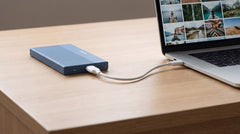
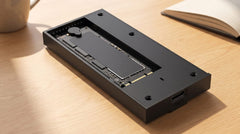
On the PS4, you'll notice this right away in shorter loading times. The Switss® M.2 SSD enclosure with an NVMe SSD reaches up to 1050 MB/s via USB 3.2 Gen 2 and supports drives up to 2 TB. That's more than enough for the PS4's USB 3.0 port, which in practice stays around 400–450 MB/s. An SSD is also compact, silent, and has no moving parts, a nice change from a rattling HDD.
External drive on PS5: does speed matter?
For media and PS4 games, the PS5's USB port is the bottleneck, not your drive. The USB-A 3.0 ports reach up to 5 Gbps, and the USB-C 3.2 Gen 2 port on the front reaches up to 10 Gbps. Preferably connect an external SSD to that USB-C port for the most bandwidth.
In practice, a fast SATA SSD or an NVMe SSD in an enclosure perform similarly when loading PS4 games. A slow HDD clearly falls behind and makes noise. For PS4 games on your PS5, a compact M.2 enclosure is therefore the most pleasant choice. Format the drive as exFAT or FAT32, and the PS5 recognizes it automatically.
Want to get the most out of an external SSD?
With any external enclosure, the USB connection sets the upper limit, not the SSD itself. USB 3.2 Gen 2 delivers around 10 Gbps (up to 1050 MB/s); USB4 or Thunderbolt goes up to 40 Gbps (up to 3000 MB/s). For console use, USB 3.2 Gen 2 is more than sufficient, since the console is the limiting factor anyway.
If you also work on a laptop or PC and want top speed for large files or editing, the Switss USB4 / Thunderbolt enclosure is the faster option. For your console itself, that extra speed adds nothing.
Conclusion
On the PS5 and Xbox Series X/S, external storage doesn't replace an internal upgrade: you can't install or launch new games from it. If you want more room for your PS5 library, choose an M.2 PCIe Gen 4 SSD for the internal slot. For a PS4 or Xbox One, an external enclosure is a complete solution, and the Switss M.2 SSD enclosure with an NVMe SSD is a compact, quiet and fast choice, backed by 2 years warranty and Dutch customer service if you have any doubts.
Frequently asked questions
Can I play a PS5 game from an external USB SSD?
No. You can move PS5 games to an external drive as an archive, but you first have to move them back to internal storage before you can launch them.
Which M.2 SSD fits in the PS5?
Only a PCIe Gen 4 NVMe SSD, preferably with around 5500 MB/s read speed. PCIe Gen 3 and SATA M.2 drives are not recognized. With a heatsink, watch the maximum height of 11.25 mm.
Does my M.2 SSD in the PS5 need a heatsink?
Sony strongly recommends a heatsink. Many SSDs are sold without one, so you can add a separate heatsink, as long as the total stays within 11.25 mm.
Is an external SSD enclosure useful for a PS5?
Indirectly, yes: for PS4 games you play directly from the drive, for media storage, and as an archive for PS5 games you're not playing at the moment.
Does USB4 or Thunderbolt make a difference for my console?
Not for the console: USB 3.2 Gen 2 (up to 1050 MB/s) is more than sufficient, since the console is the bottleneck. USB4 or Thunderbolt (up to 3000 MB/s) is mainly useful on a laptop or PC.